Set Up Mailgun
We use Mailgun to send transactional emails from our sites (fun fact: it's also what powers transactional email for our Promoter customers).
About Sending Domains
Every site has at least two sending domains to set up: mg.{domain} and mg-sandbox.{domain}
- We use the
mg.subdomain for production emails only. - We use the
mg-sandbox.subdomain for everything else, including local development.
This two-domain approach allows us to separate production emails from everything else, without having to create too many non-production domains—instead of having having mg-development, mg-staging, and mg-local, for example, we can just use mg-sandbox for all of these non-production use cases.
What about subdomains?
A site like solidwp.com would have two sending domains: mg.solidwp.com and mg-sandbox.solidwp.com.
But what about all it's subdomains, my.solidwp.com? And adminber.solidwp.com? And academy.solidwp.com?
We generally prefer to use the same sending domains for all of these sites.
An example, to be clear:
| Domain | Production Sending Domain | Sandbox Sending Domain |
|---|---|---|
solidwp.com | mg.solidwp.com | mg-sandbox.solidwp.com |
my.solidwp.com | mg.solidwp.com | mg-sandbox.solidwp.com |
adminber.solidwp.com | mg.solidwp.com | mg-sandbox.solidwp.com |
academy.solidwp.com | mg.solidwp.com | mg-sandbox.solidwp.com |
There are no issues with using the same sending domains for a service and its sub-services. In fact, it helps a lot with keeping things simple, consistent, and allowing for much easier management and troubleshooting.
It may also help with domain reputation, though this is a topic for another article.
Setting up a Sending Domain
For this article, we'll be setting up Mailgun for the site bookitwp.com.
As discussed above, this will need two sending domains:
mg.bookitwp.comfor production emailsmg-sandbox.bookitwp.comfor everything else
Let's get started!
Add a new sending domain in Mailgun
Log into Mailgun, and head to the Domains page. You can get here by navigating to Send → Sending → Domains in the sidebar.
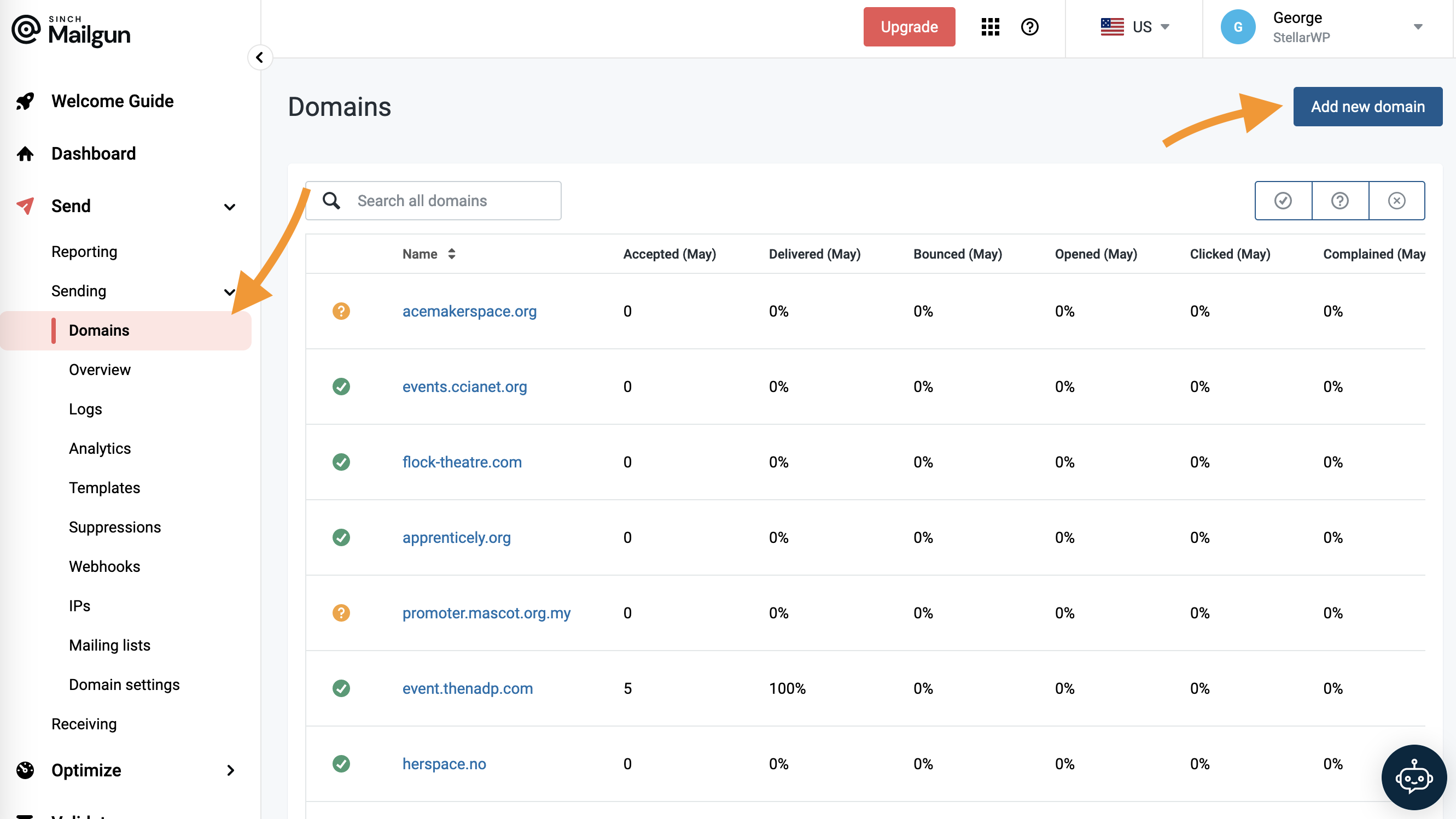
Click Add New Domain in the top right.
Specify the sending domain's details
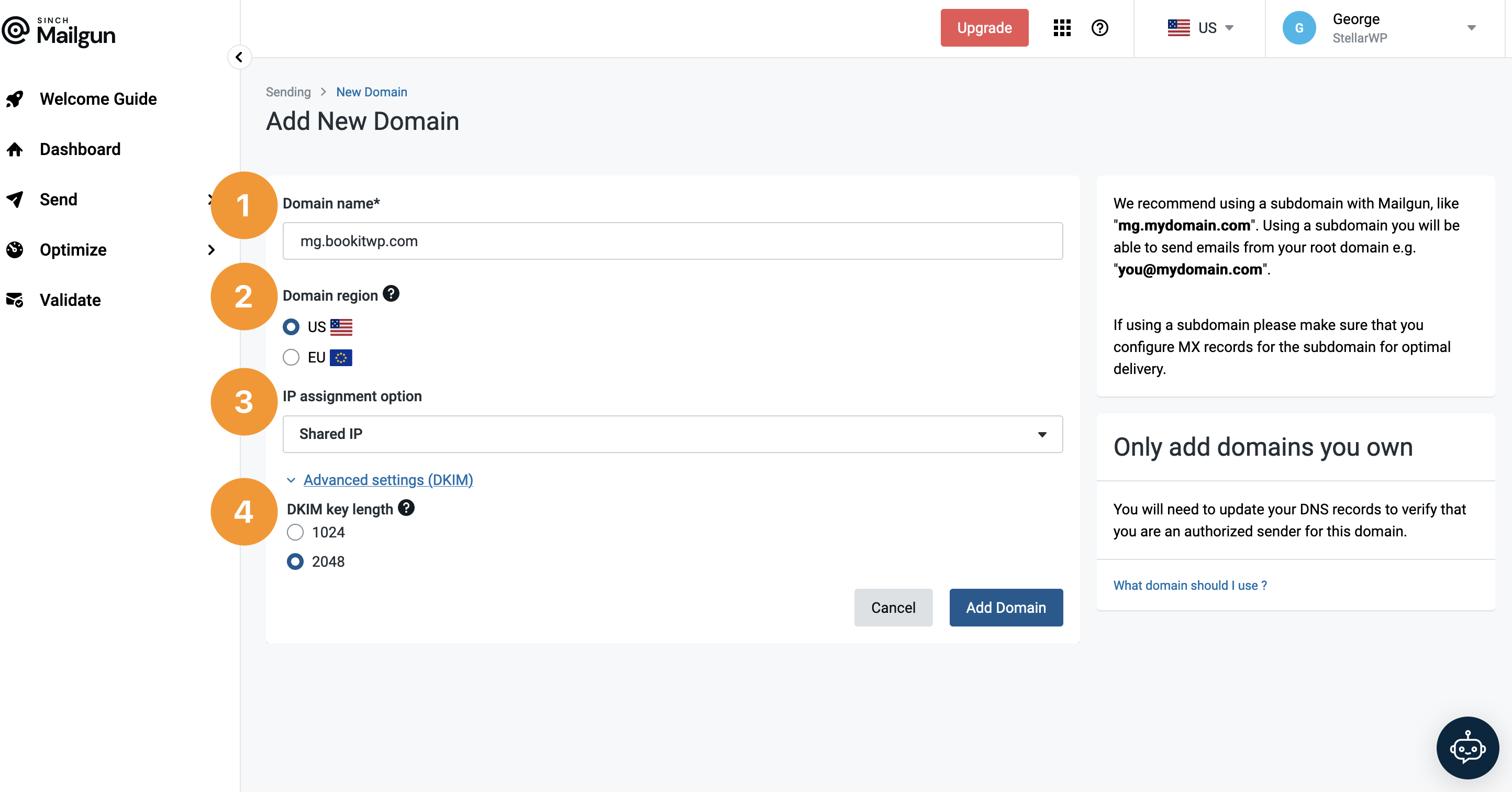
You'll be brought to an Add Domain screen to specify the details of the domain:
- The sending domain name itself, of course—in this case,
mg.bookitwp.com. - The Domain region—always
US. - The IP assignment option—always
Shared IP. - Expand Advanced Settings (DKIM), and choose a DKIM key length of
2048.
Add the DNS records in Cloudflare
We'll now add the domain's DNS records in Cloudflare. Note that Mailgun has great documentation on this, but we'll cover the basics here.
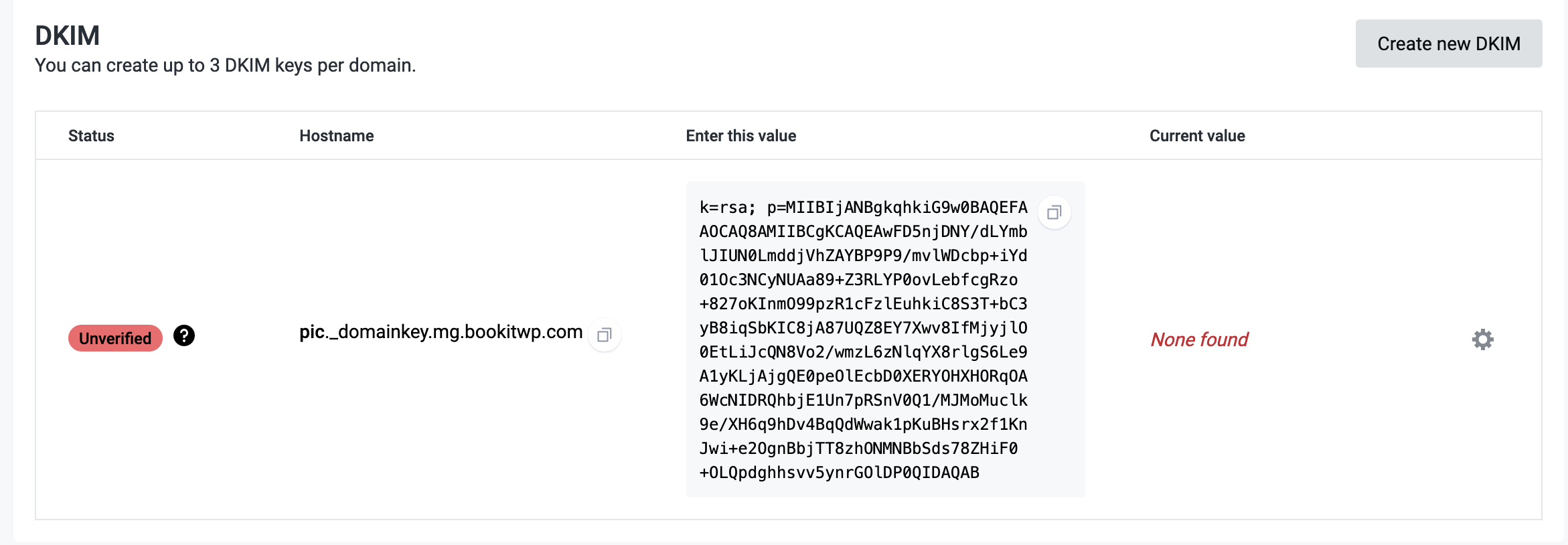
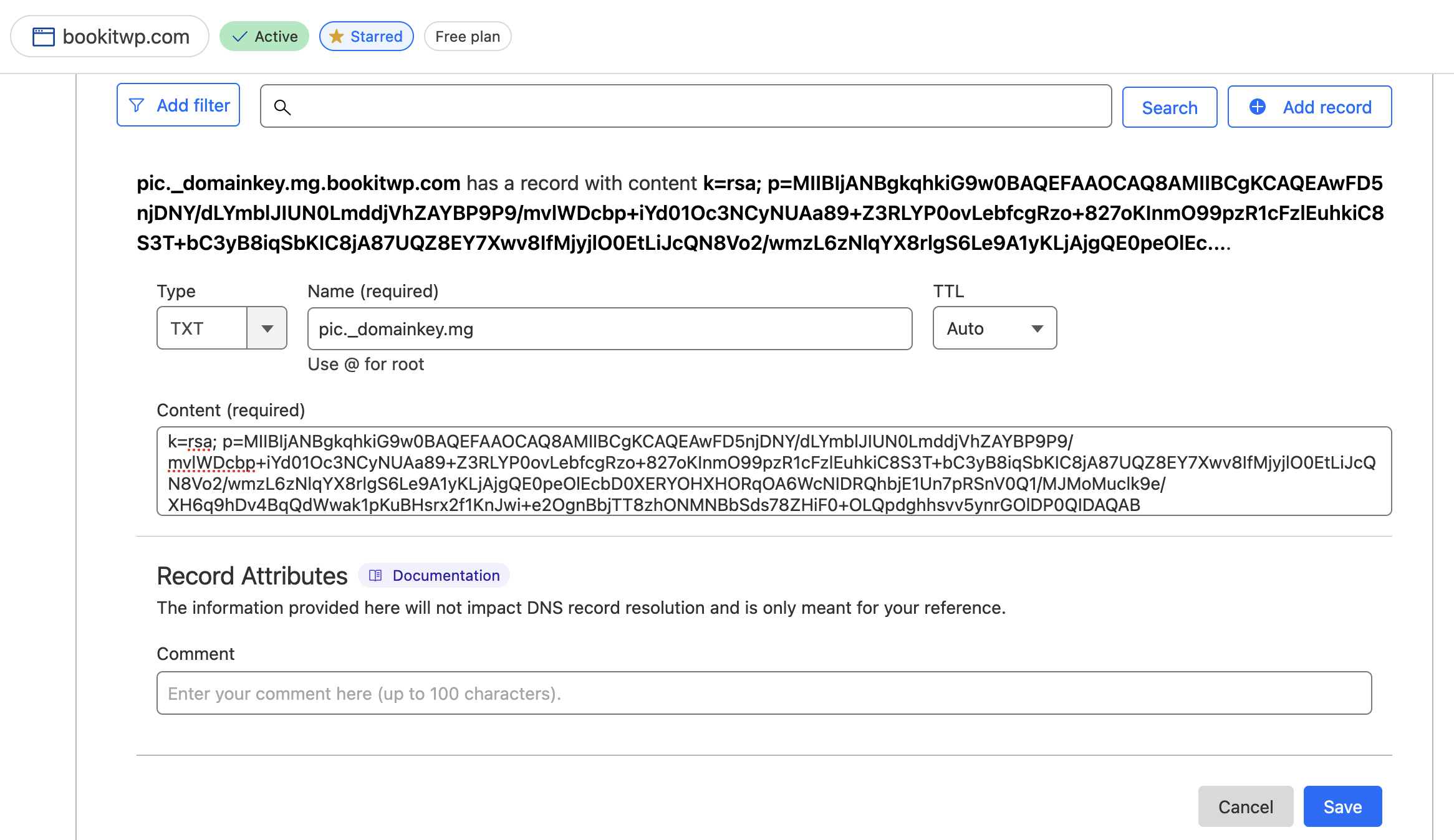
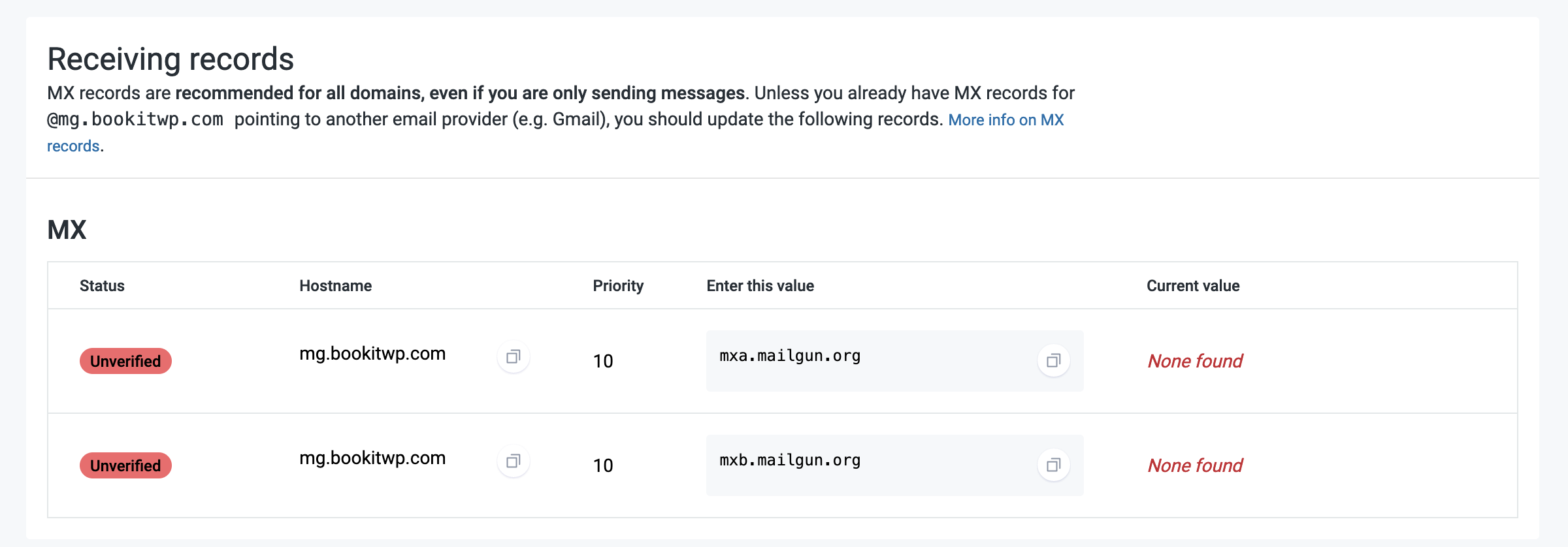
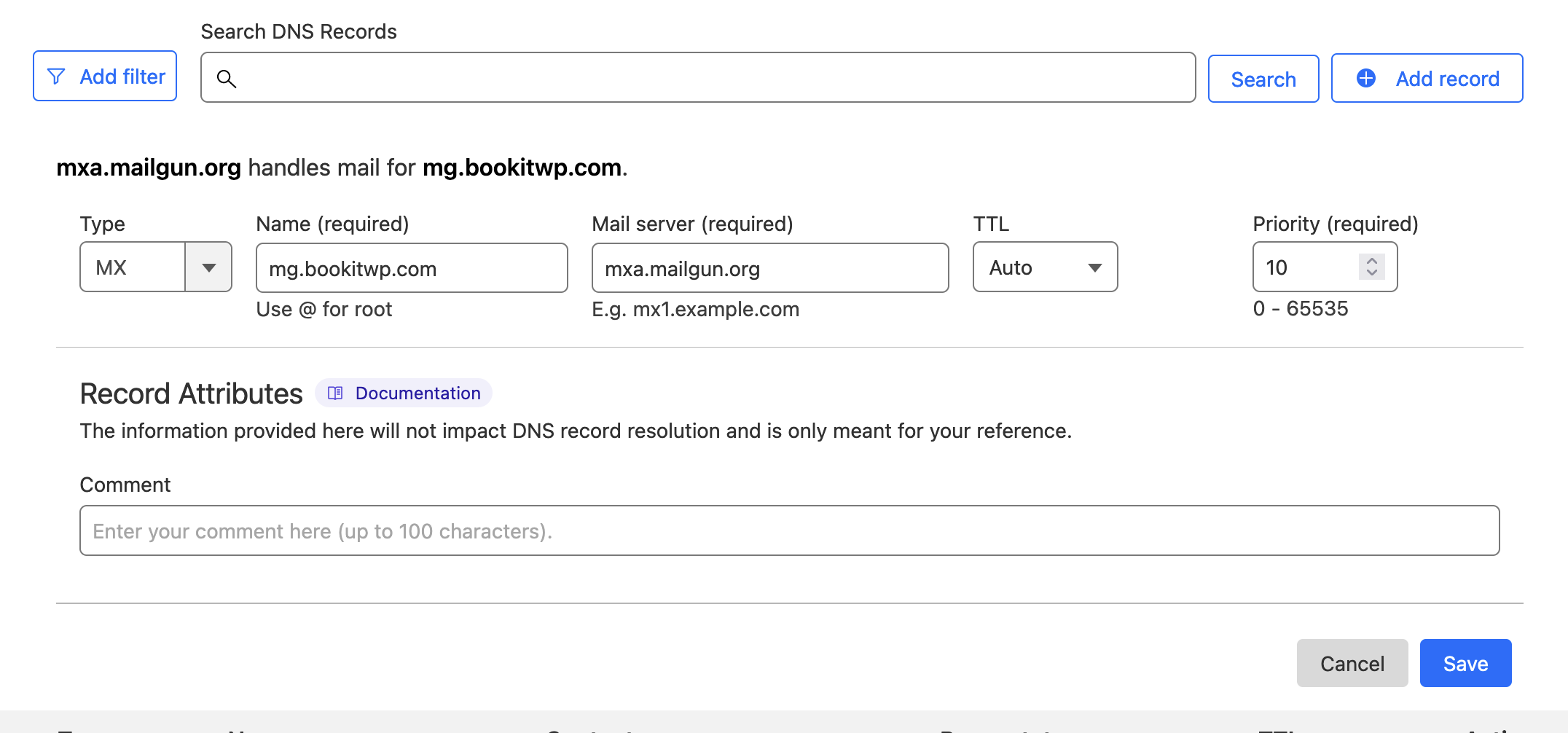
We add all recommended DNS records for each sending domain, even if it doesn't seem immediately useful. Specifically:
- The
TXTrecords for SPF and DKIM (important for email deliverability) - The
MXrecords provided by Mailgun—yes, even if there's no intention of receiving email at this domain. - The
CNAMErecord for supporting basic analytics within Mailgun.
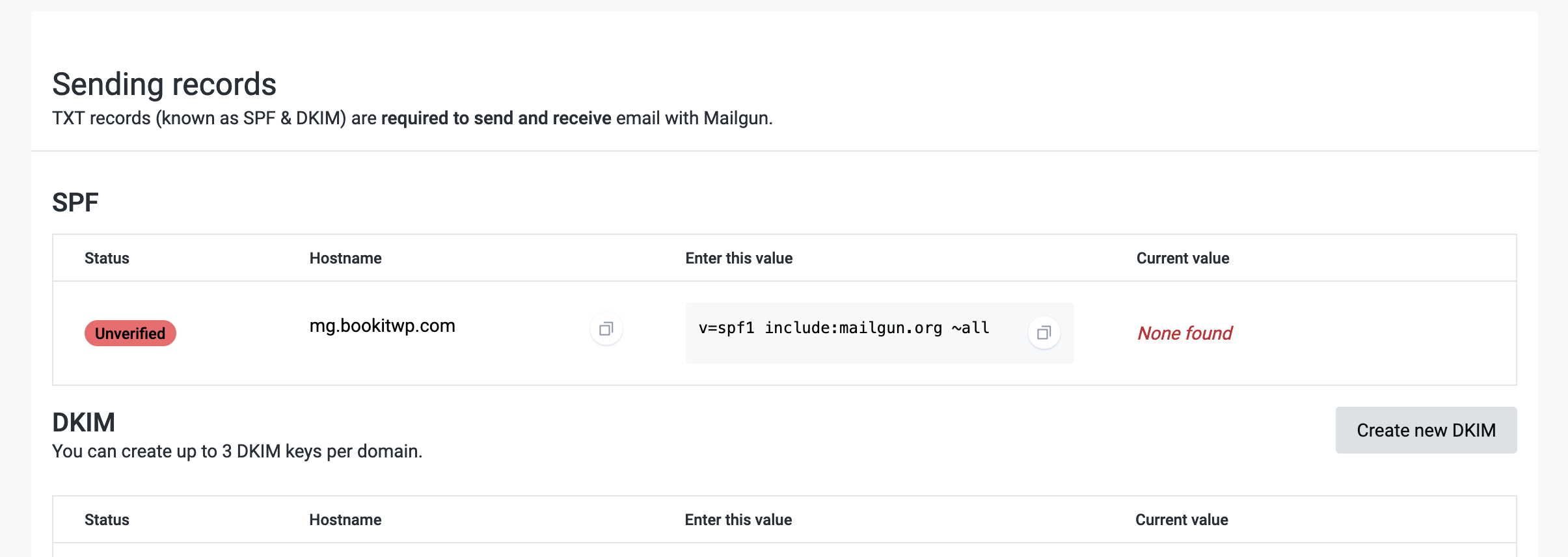
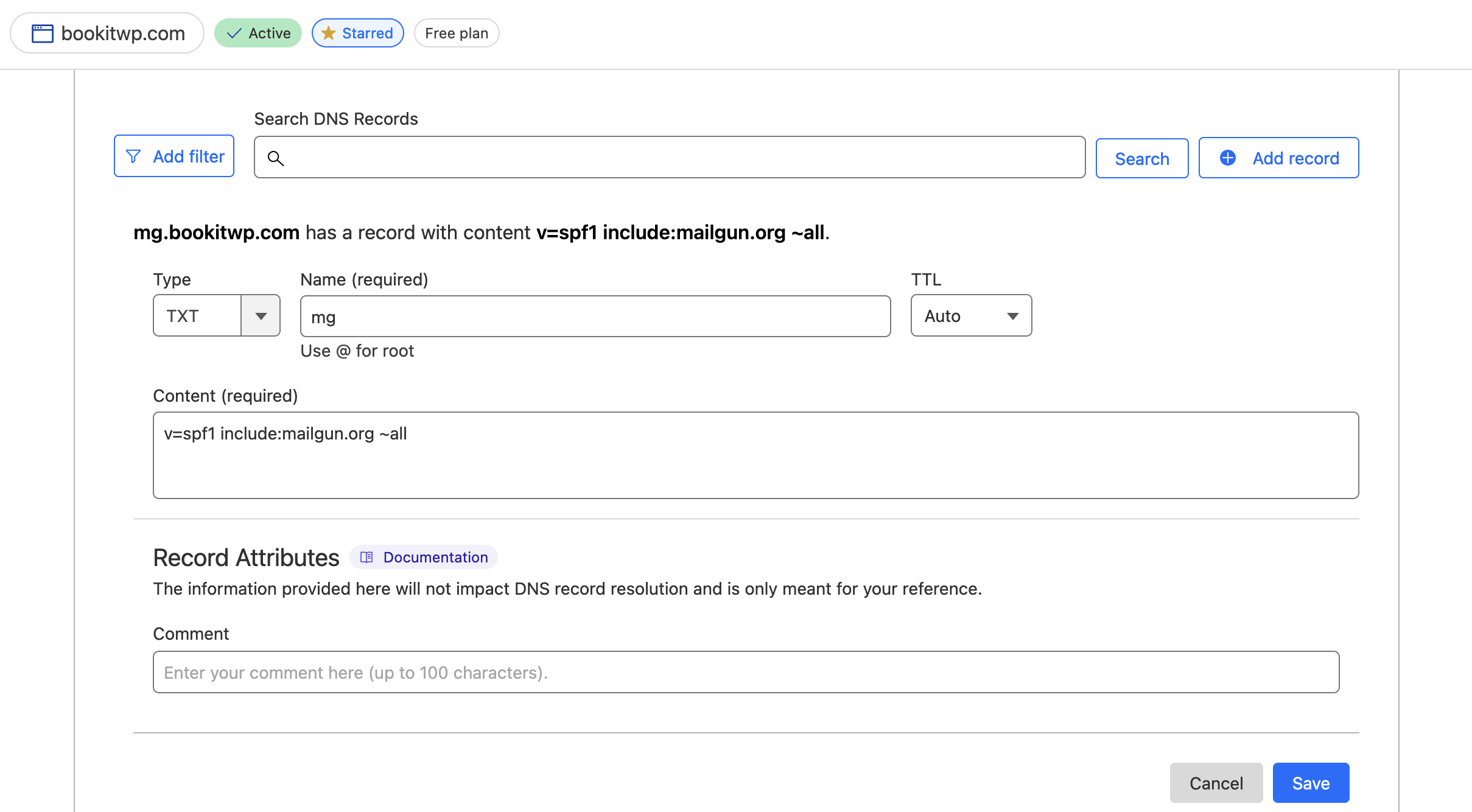
Adding TXT records: SPF
| What it looks like in Mailgun |
|---|
 |
| What it looks like in Cloudflare |
|---|
 |
Adding TXT records: DKIM
| What it looks like in Mailgun |
|---|
 |
| What it looks like in Cloudflare |
|---|
 |
Adding MX Records
| What it looks like in Mailgun |
|---|
 |
| What it looks like in Cloudflare |
|---|
 |
Adding the CNAME Record
| What it looks like in Mailgun |
|---|
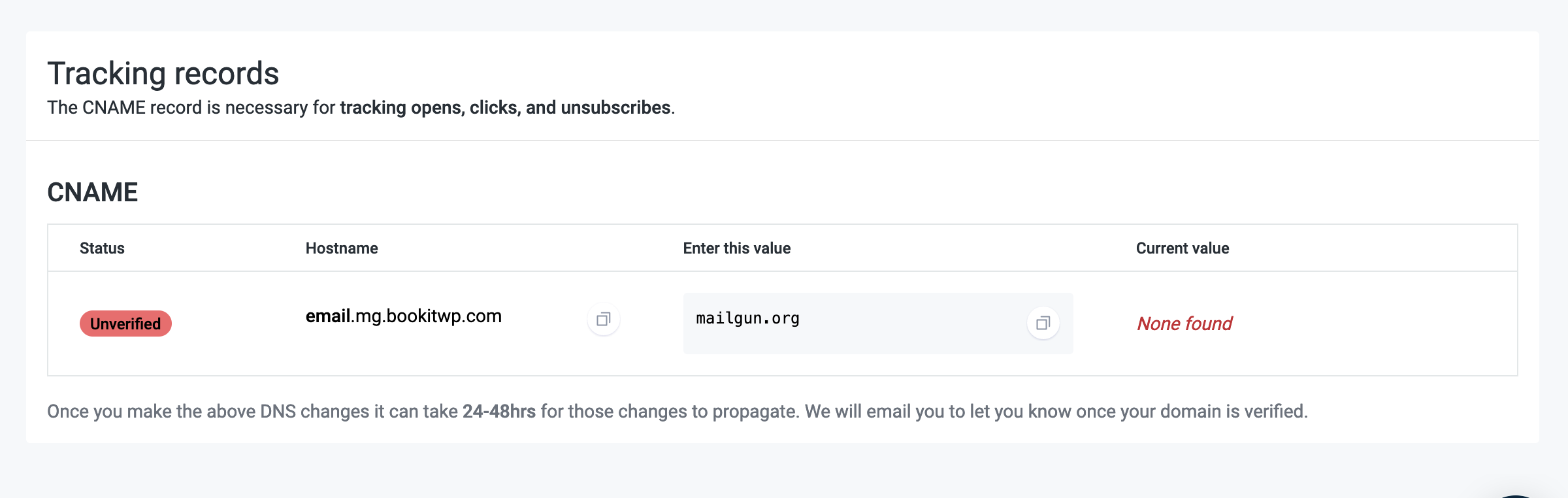 |
| What it looks like in Cloudflare |
|---|
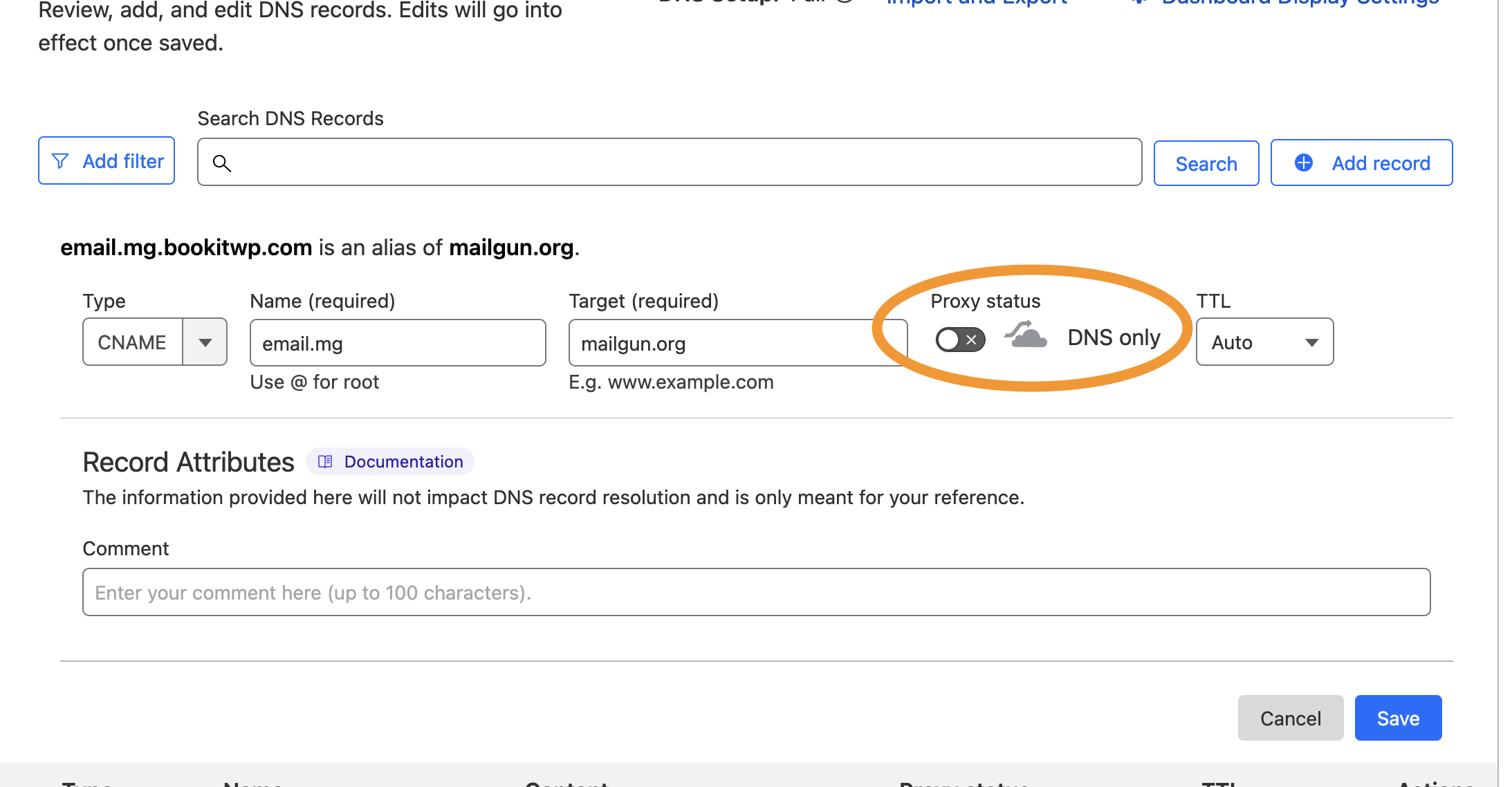 |
Remember to ensure the CNAME in Cloudflare is NOT proxied! Its "Proxy Status" should be "DNS Only"—see the screenshot above.
Verify the DNS records
When all is said and done, you should see all the records added in Cloudflare.
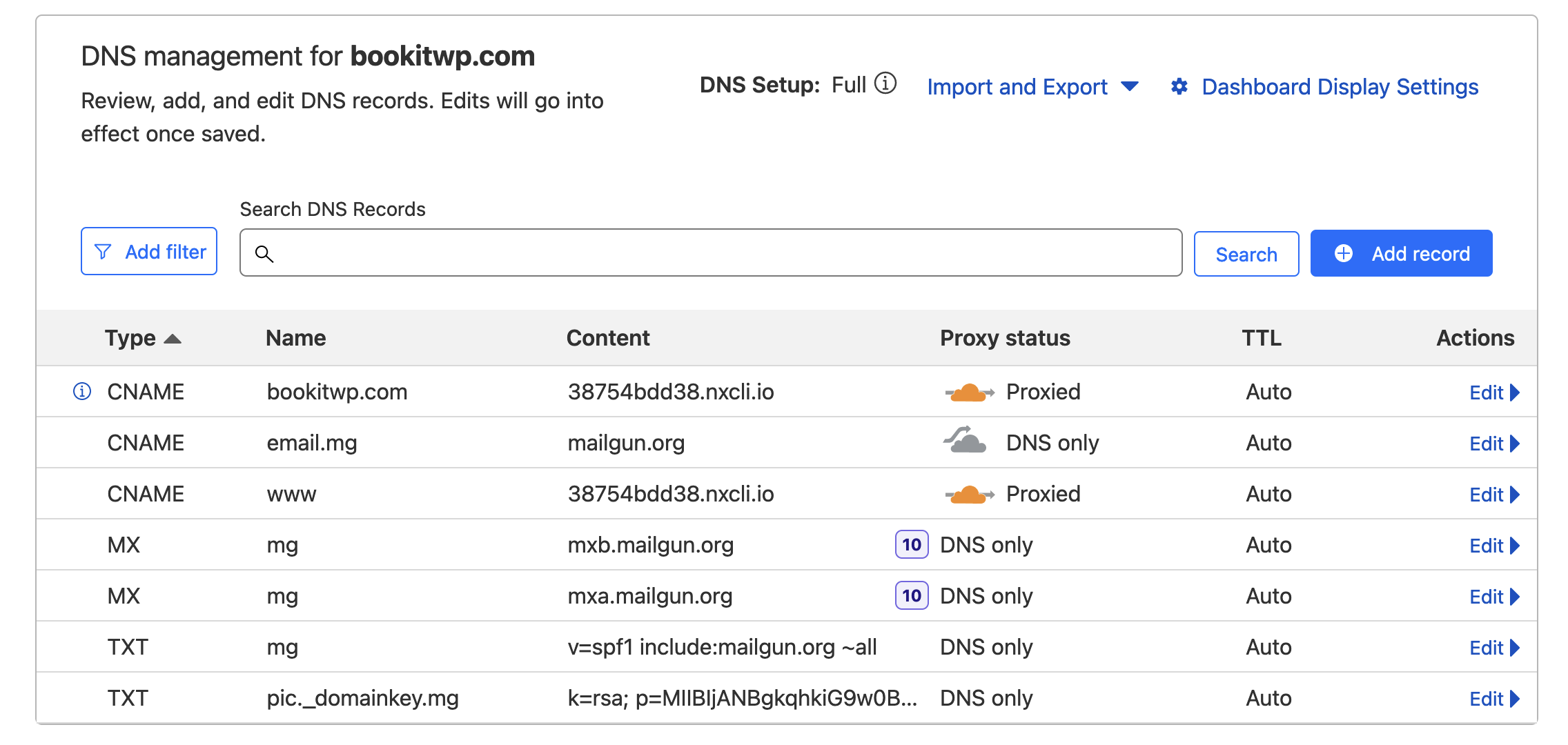
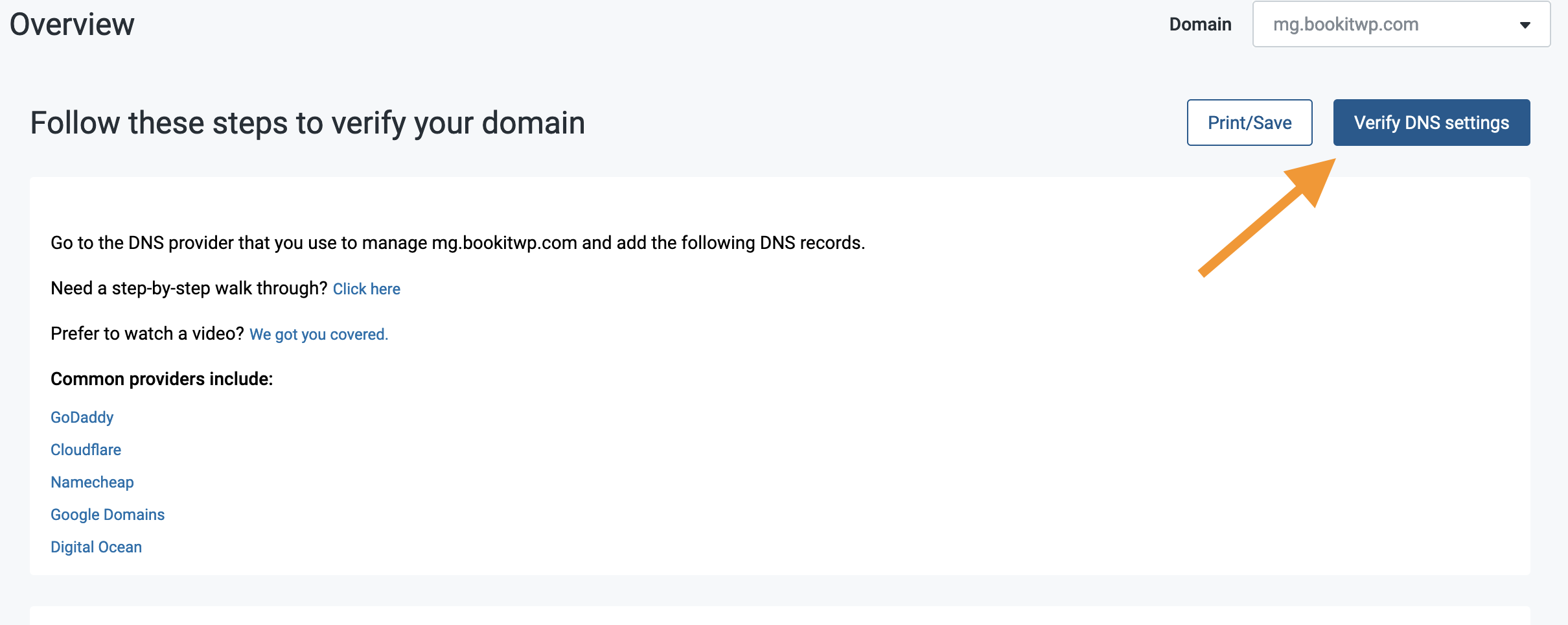
You can then press the "Verify DNS settings" button in the top right of the Mailgun page to ensure the DNS records are working as expected.
Repeat for the Sandbox Domain
Now that we've added the DNS records for the production domain, we need to repeat the process for the sandbox domain.
You start with "Add a new sending domain in Mailgun", add mg-sandbox.bookitwp.com as the domain name, and then repeat the process for the DNS records.
Create a Sending Key
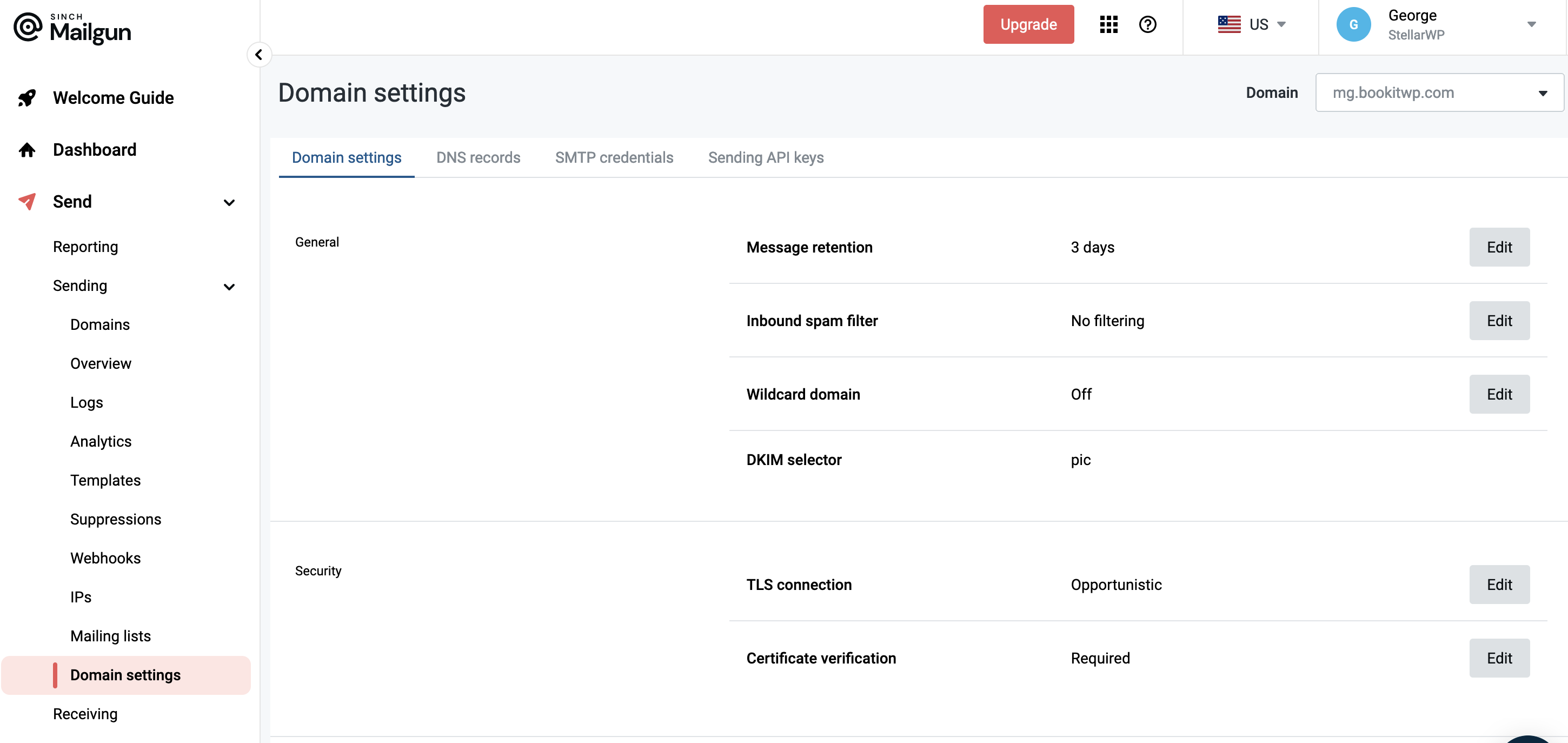
Navigate to Domain settings page for the sending domain
You can get here by navigating to Send → Sending → Domain settings in the sidebar, and choosing the domain in domain selection menu in the top-right corner.
Create the new sending key
Click the Sending API keys tab, and once there, click Add sending key.
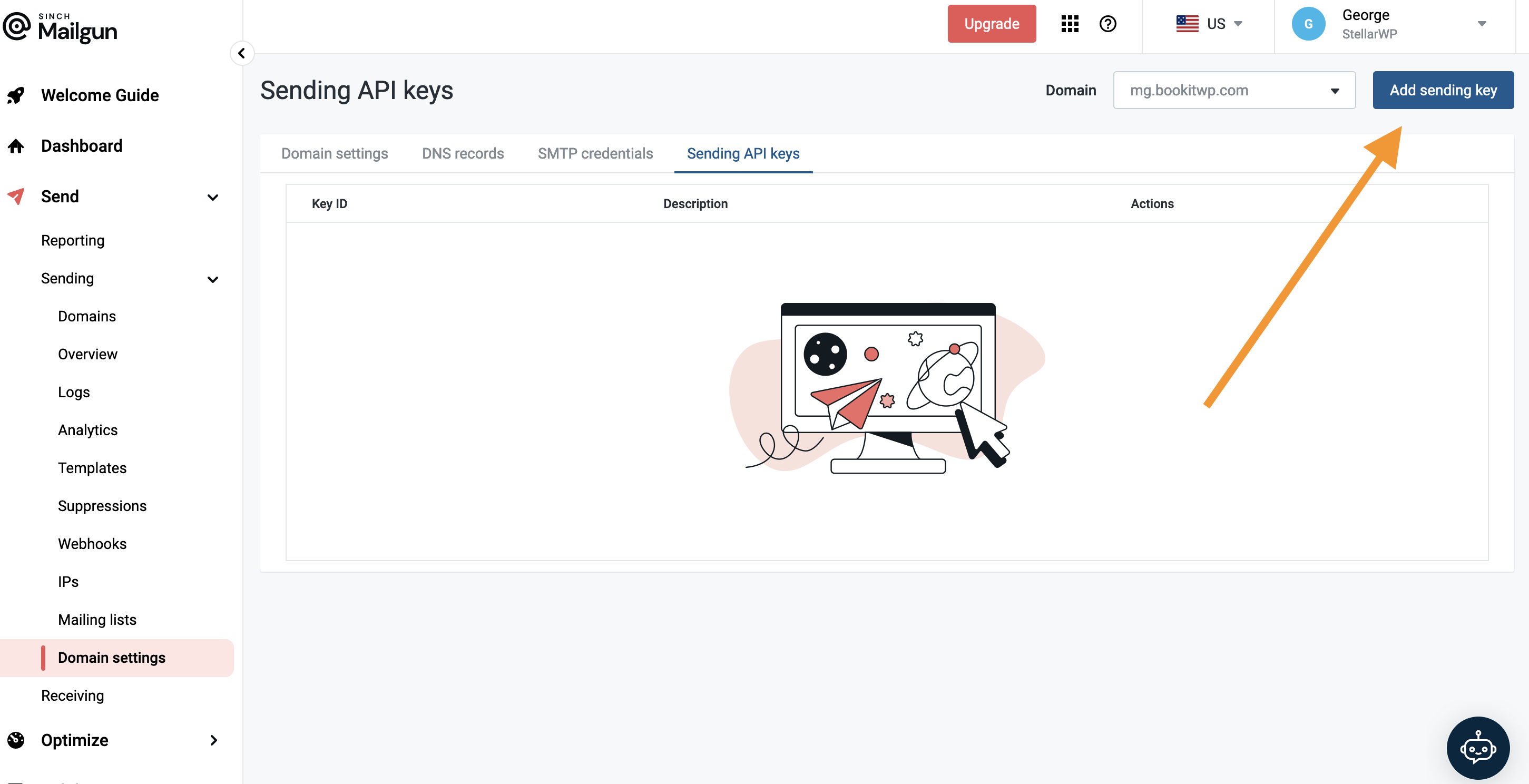
When prompted for a description, you can just provide the sending domain name itself, e.g. mg.bookitwp.com.
Immediately save the sending key in 1password
Copy the key to your clipboard, and immediately save it in 1password.
You'll head to the StellarWP → Web Team vault in 1password, and find the Mailgun API Keys item.
Add a new Section for the site, and then for each sending domain, add a new Password field with the key you just copied.
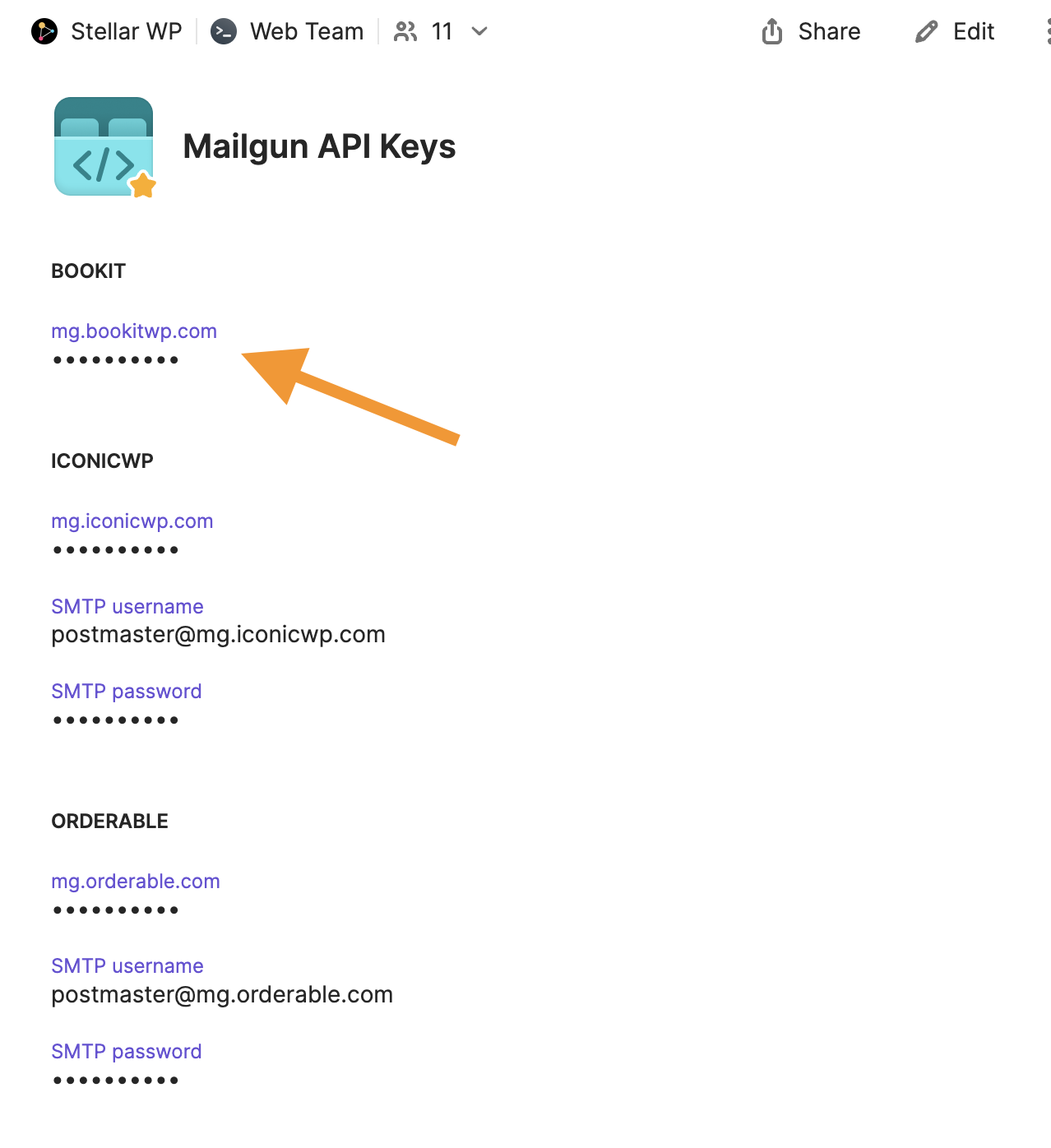
Remember: The sending key must be saved in a Password field.
Set Up the Mailgun Plugin
Add the Mailgun plugin to the site
We use the official Mailgun plugin for WordPress.
Add it to the site(s) where it's needed and activate it.
Configure the Mailgun plugin settings
Once activated, navigate to the Mailgun plugin's "Settings" page. There will be several fields to configure on a page that looks like this:
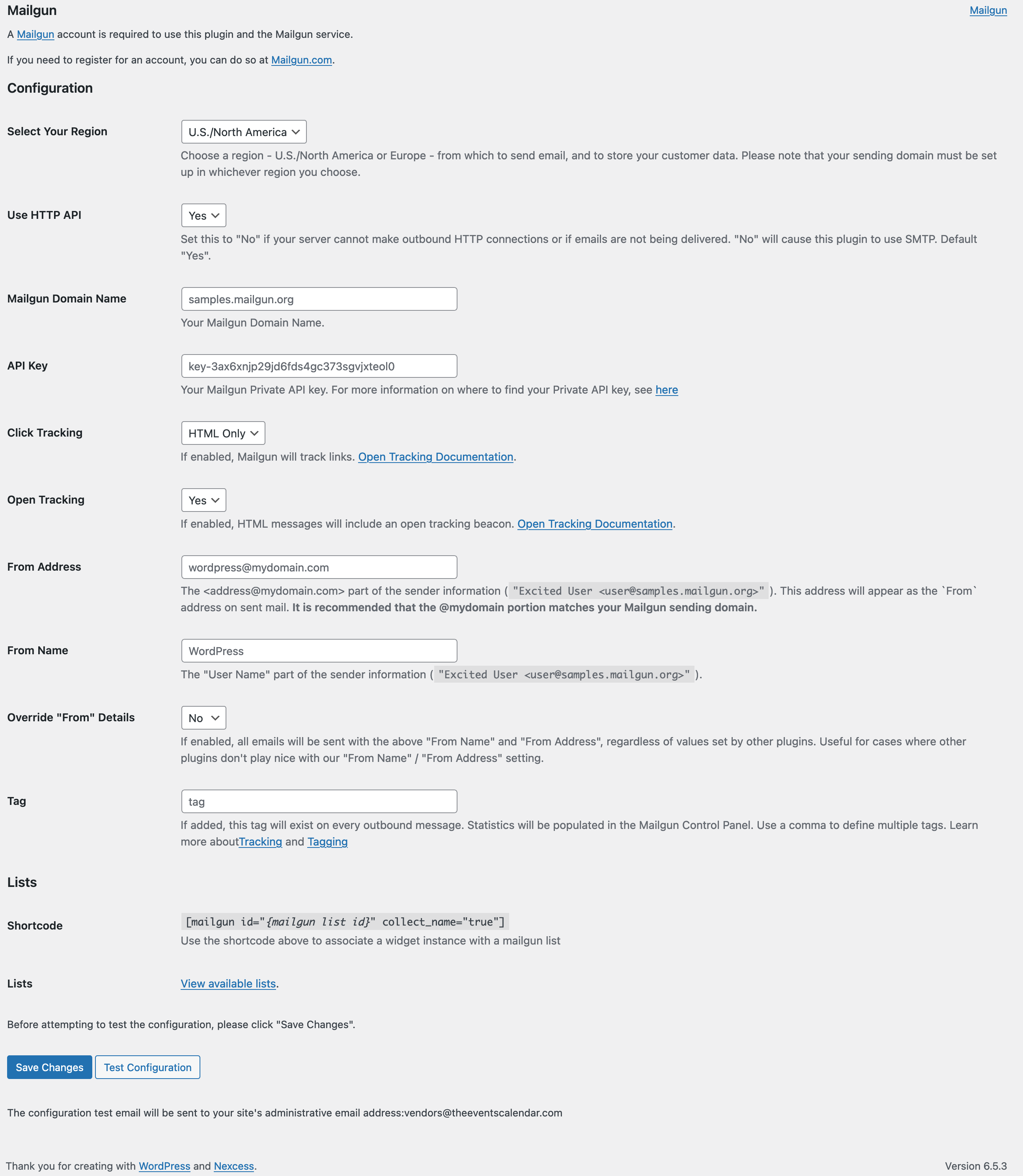
Here's how we'd fill this out for the bookitwp.com production site:
| Field | Value |
|---|---|
| Select your region | U.S./North America |
| Use HTTP API | Yes |
| Mailgun domain name | mg.bookitwp.com (or mg-sandbox.bookitwp.com if this was dev, staging, or local) |
| API Key | The sending key you created in the earlier section! |
| Click tracking | HTML Only |
| Open tracking | Yes |
| From address | wordpress@bookitwp.com (💡) |
| From name | BookItWP (💡) |
| Override "From" details | Yes |
| Tag | Unless told otherwise, we generally leave this blank. |
Note: The From address and From name fields are worth confirming with brand stakeholders—product managers, marketing, and so on. If you're not sure who to ask, you can start a thread in #stellar-websites.
Testing and Conclusion
At this point, you can Save Changes in the Mailgun plugin settings page and then use the Test Configuration button there.
You should see a success message pop-up, and a test email should arrive at the inbox of the Administration Email Address set in the site's WordPress General Settings.
If you don't have access to that inbox, you can test things by doing a password reset for your personal admin account on the site.
If everything has been set up correctly, you should get the email. It should not be marked as spam, and if you expand the email headers in your email client, you should see that it was sent from and signed by the correct sending domain—in this case, mg.bookitwp.com.
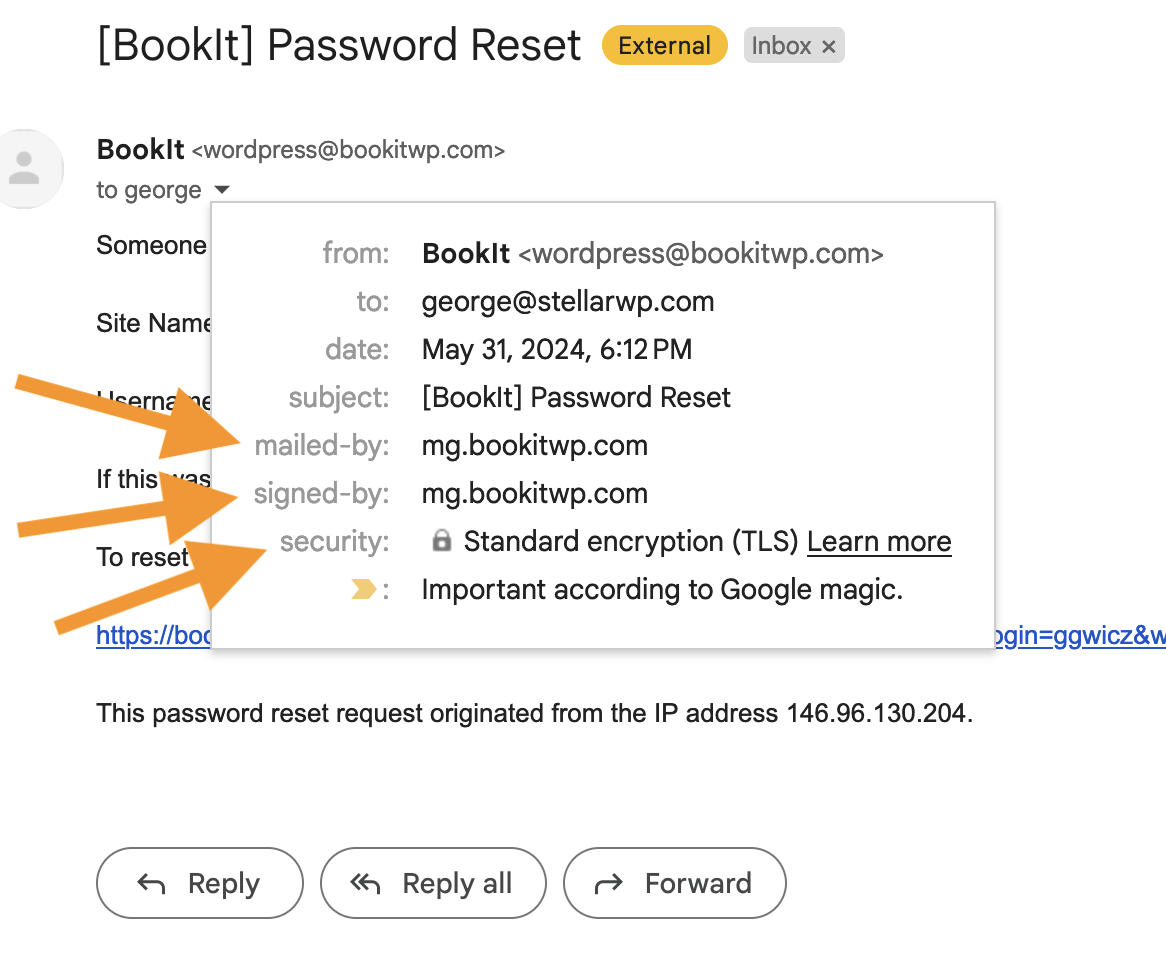
Congrats! You've now set up Mailgun for your site. Rejoice.