Delete a Site
To remove a site from Nexcess, adhere to the steps outlined below.
This guidance is for permanently deleting a site, not e.g. migrating it to another location.
Create a Full Backup in Nexcess
Navigate to the Nexcess site management area and locate the Backups tab.
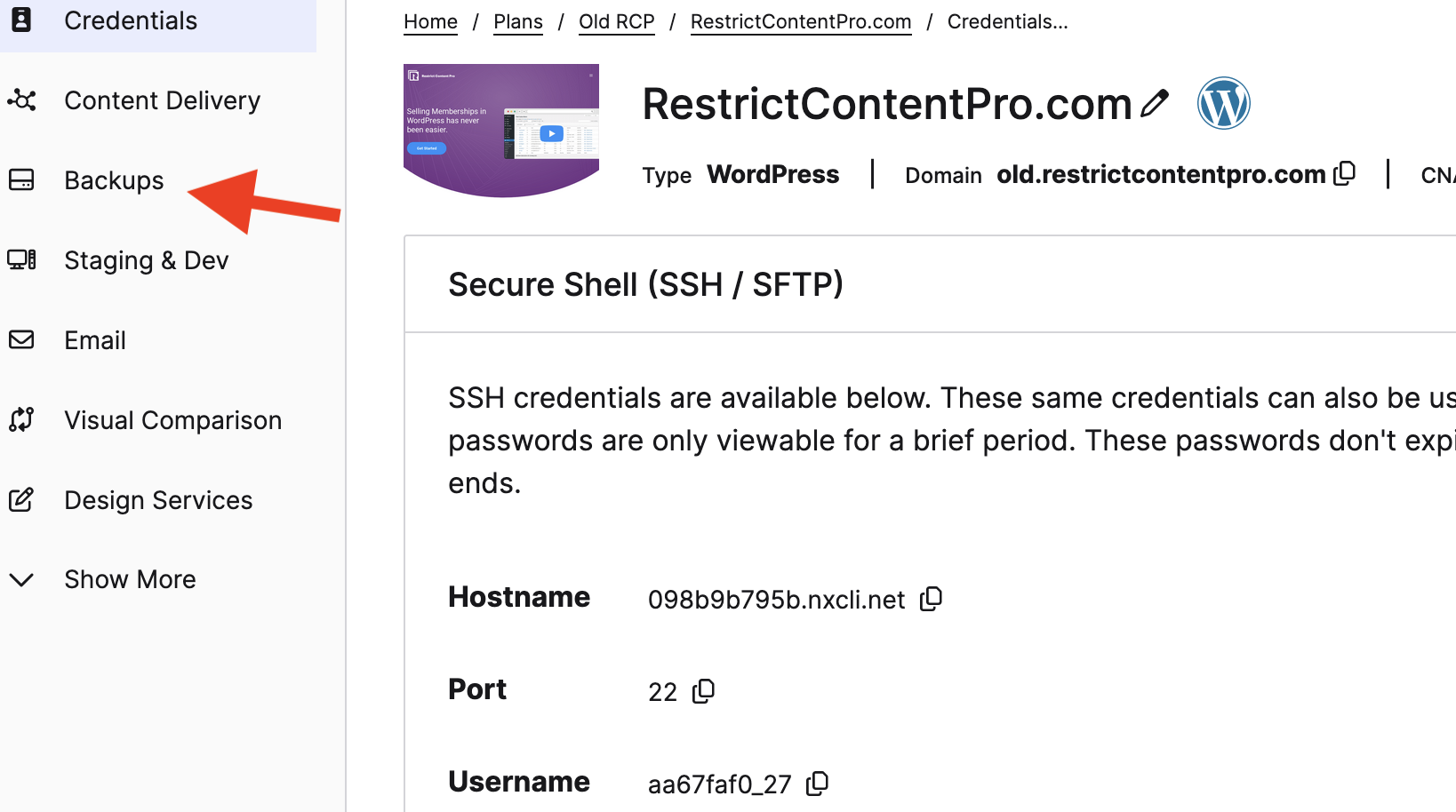
On this page, opt for a Manual Backup — avoid using a Daily Backup.
Click Create Backup and allow the process to complete; this might take an hour or more, depending on the site's size and current Nexcess platform conditions.
Download the Backup
Once the backup is available, download it to your computer. The download time will vary based on the backup size.
Encrypt the Backup
Ensure gpg is installed on your computer for command line encryption.
Retrieve the Wasabi Site Backups — GPG Passphrase from the Web Team vault in 1Password.
To encrypt the backup, navigate to the download directory, usually ~/Downloads.
The backup will be in a .tar.gz or shorthand .tgz format. Encrypt it using:
gpg -c filename_of_the_backup.tar.gz
Enter the Wasabi Site Backups — GPG Passphrase when prompted.
Encryption time will depend on the archive size. Remain patient, avoid interrupting the terminal process, and let it complete.
Upload the Encrypted Backup to Wasabi
After encryption, your backup's filename should end in .tgz.gpg. Ensuring it matches the original file size before you proceed.
Remove the unencrypted backup from your device, leaving only the encrypted version behind.
Log into Wasabi at wasabi.com using the credentials for the vendors@stellarwp.com account found in 1Password.
Navigate to the webteam-backups bucket, then the backups folder inside of it.
Upload your encrypted backup to this folder. Upload time will depend on the file size.
If you experience problems with wasabi try using company LW VPN.
Delete the Site
Once the backup is uploaded to Wasabi, delete your local copy of the backup.
Finally, proceed with deleting the site in Nexcess.
To be abe to delete the site, you have to be logged in with administrator account from 1password vendors@theeventscalendar.com.
Decrypting a Backup
gpg -o {output filename}.tar.gz -d {filename}.tar.gz.gpg